
Factory resetting a Roomba isn’t complicated, but the process varies depending on which model is sitting in the corner of the room. Whether the vacuum won’t connect to Wi-Fi, keeps displaying error codes, or needs to be prepped for a new owner, a factory reset clears out settings and returns the device to its original state. This guide walks through the reset process for different Roomba series, what to do beforehand, and how to get the vacuum back online afterward. No app subscription or technician needed, just a few button presses and a little patience.
Table of Contents
ToggleKey Takeaways
- A factory reset on your Roomba solves Wi-Fi connectivity issues, persistent error codes, and software glitches by returning the device to its original settings.
- Before factory resetting your Roomba, save your Wi-Fi credentials, ensure the vacuum is docked with sufficient battery, and remove it from the app to prevent reconnection errors.
- The reset procedure varies by model: newer i, j, and s series models require holding the CLEAN button for 20 seconds on the dock, while 900 series and older models need only 10 seconds or less.
- After a factory reset, reconnect your Roomba through the iRobot Home app by enabling pairing mode (pressing the HOME button until the light ring pulses blue) and entering Wi-Fi credentials on a 2.4 GHz network.
- Your custom cleaning schedules, room maps, and zone names will be erased after a factory reset, so plan to rebuild these settings through the app after reconnecting.
- If your reset Roomba won’t reconnect to Wi-Fi, verify your router broadcasts the 2.4 GHz band separately, disable 5 GHz temporarily, and reboot the router if needed.
Why You Might Need to Factory Reset Your Roomba
Several situations call for a complete factory reset rather than a simple reboot. Understanding the difference saves time and frustration.
Connectivity problems top the list. If the Roomba won’t pair with the iRobot Home app, refuses to join a new Wi-Fi network, or keeps losing connection mid-clean, a reset often clears corrupted network settings. Moving to a new house with a different router? Reset it.
Persistent error codes that survive normal troubleshooting steps, like cleaning the sensors, emptying the bin, and checking the brushes, sometimes require a full reset to clear. If the Roomba’s chiming error sounds after addressing the obvious mechanical issues, it’s time to wipe the memory.
Selling or gifting the vacuum means the new owner needs a clean slate. A factory reset removes the previous owner’s Wi-Fi credentials, cleaning schedules, and app connections. No one wants their vacuum showing up in someone else’s smart home app.
Software glitches occasionally cause erratic behavior: running in circles, ignoring virtual boundaries, or refusing to dock. A reset restores default firmware settings and can resolve unexplained quirks that updates don’t fix.
One note: A factory reset erases all custom settings, including cleaning schedules, room mappings, and app connections. It’s the nuclear option, not routine maintenance. Try a simple reboot first, hold the CLEAN button for 10 seconds until the light ring swirls. If that doesn’t work, proceed to a full reset.
Preparing Your Roomba for a Factory Reset
A little prep work prevents confusion and ensures the reset goes smoothly. Skipping these steps won’t break the vacuum, but it makes reconnecting afterward harder.
First, note down the Roomba’s name and Wi-Fi network credentials if the plan is to reconnect it immediately. The reset wipes its memory of the network name (SSID) and password. Have that information ready on a phone or written down.
Place the Roomba on its charging dock before starting. Most reset procedures require the vacuum to have sufficient battery charge. Some models won’t complete a reset if the battery is too low, and a dead vacuum mid-reset is just wasted time.
Open the iRobot Home app on a phone or tablet if the Roomba is currently connected. Navigate to the device settings and check for any custom maps, schedules, or zone names that might be worth screenshotting. The reset deletes these, and recreating maps from scratch takes several cleaning runs.
Remove the Roomba from the app (optional but recommended). Go to Settings > Remove/Delete Robot. This cleanly disconnects the device from the account and prevents app sync issues later. If skipped, the app might show the Roomba as offline or throw connection errors after the reset.
Check for firmware updates before resetting. If the app shows an available update, let it install first. Resetting to an outdated firmware version just means updating again post-reset, which adds unnecessary steps.
Finally, clear the dustbin and check the brushes. This isn’t strictly necessary for a reset, but if the vacuum’s acting up, mechanical issues might be the real problem. A clogged filter or tangled brush won’t be fixed by wiping software settings.
How to Factory Reset Different Roomba Models
Roomba reset procedures aren’t universal. Button layouts and sequences changed across generations, so identifying the correct series matters.
Resetting Roomba i, j, and s Series Models
The i series (i3, i4, i6, i7, i8), j series (j7, j7+), and s series (s9, s9+) use the same reset method. These are the app-connected models with mapping capabilities and self-emptying bases (on the plus models).
-
Place the Roomba on the charging dock. Ensure the contact pins align and the vacuum shows it’s charging (light ring illuminated).
-
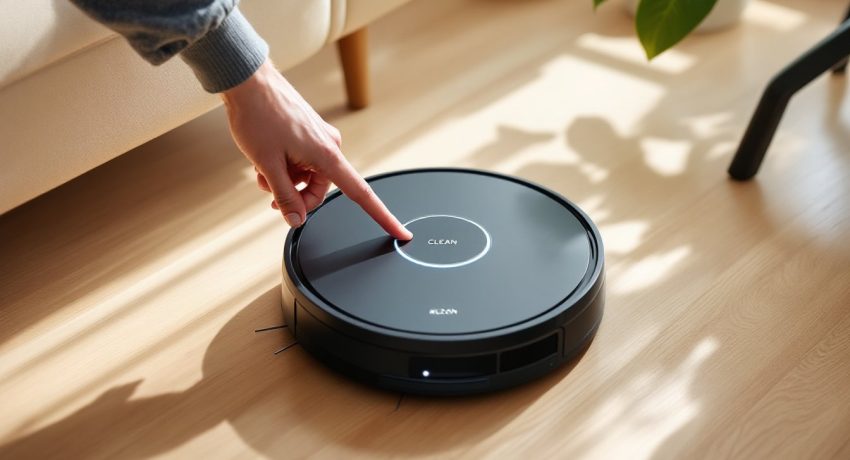
Press and hold the CLEAN button for 20 seconds. The button sits in the center of the top panel, usually marked with a circular arrow icon. Keep holding even if the light ring changes color or starts pulsing.
-
Watch for the light ring to swirl white. This confirms the reset. On some models, the ring might pulse or display a brief animation before settling into the white swirl pattern.
-
Release the button. The Roomba will play a tone or chime indicating the reset is complete. The light ring resets to the default startup pattern, typically a white spinning light.
-
Wait 30 seconds before removing the Roomba from the dock. The vacuum is rebuilding its internal settings during this period.
These newer models with sophisticated mapping take longer to reset than older ones. Don’t panic if it takes a full 20-30 seconds for the light sequence to change. For the factory reset process on newer series, patience is key, releasing the button too early aborts the process.
Resetting Roomba 900 Series and Older Models
The 900 series (960, 980) and older models like the 600, 700, and 800 series use a different button combination. These vacuums have physical buttons on the top panel rather than a single touch-sensitive CLEAN button.
-
Ensure the Roomba has at least a 50% charge. These older models don’t need to be docked during the reset, but low battery can interrupt the process.
-
Locate the CLEAN button (center) and the SPOT and DOCK buttons (usually on either side or nearby, depending on the model).
-
Press and hold CLEAN for 10 seconds. Some guides suggest holding all three buttons (CLEAN, SPOT, DOCK) simultaneously, but the CLEAN button alone typically works for most 900 series and older models.
-
Release when the light ring or indicator flashes. Older models use LED status lights rather than a full ring. Look for a rapid flash or a change in light behavior.
-
Listen for the startup tone. The Roomba will play its boot-up sound, indicating the reset is complete.
For the 500 series and earlier (mostly discontinued but still in use), the button layout varies. Models like the 600 and 800 series follow similar procedures but may require holding the CLEAN button for only 5-10 seconds. If the first attempt doesn’t work, try holding the button longer or consult the user manual for model-specific quirks.
Roomba Combo models (vacuum and mop hybrids) generally follow the i/j/s series reset procedure: 20 seconds on the CLEAN button while docked. If the combo model has a separate mop module, remove it before resetting to avoid any mechanical interference.
Reconnecting Your Roomba After a Factory Reset
A factory reset returns the Roomba to out-of-the-box condition, which means it needs to be set up from scratch. The process mirrors the initial setup but should go faster the second time around.
Download or open the iRobot Home app on a smartphone or tablet. The app is free and available for iOS and Android. Make sure the phone is connected to the 2.4 GHz Wi-Fi network the Roomba will use. Most Roombas don’t support 5 GHz networks, which trips up a lot of reconnection attempts.
Create or log into an iRobot account. If the Roomba was previously registered, use the same account. If it’s being set up for a new owner, they’ll need to create a fresh account.
Tap the “+” icon or “Add Robot” in the app. The app will search for nearby Roombas in setup mode. The vacuum should be on its dock, light ring pulsing or displaying a startup pattern.
Press and hold the HOME button (i/j/s series) or CLEAN button (older models) until the light ring pulses blue (or the LED flashes on older models). This puts the Roomba into pairing mode. If it doesn’t enter pairing mode, remove it from the dock for 10 seconds, then replace it and try again.
Follow the app prompts. The app will ask for Wi-Fi credentials, assign a name to the Roomba, and walk through the room mapping setup (for mapping-capable models). This part takes 5-10 minutes, longer if the vacuum needs a firmware update.
Run a test cleaning cycle. Let the Roomba clean for at least 30 minutes after reconnecting. This allows it to calibrate sensors, update any pending firmware, and start building a map (if applicable). For mapped models, the first few runs are learning cycles, don’t expect perfect navigation immediately.
Recreate schedules and zones if the Roomba had custom cleaning routines before the reset. Smart mapping models let users define rooms, no-go zones, and scheduled cleanings through the app. These settings don’t survive a reset and need to be manually rebuilt.
If the Roomba won’t connect after multiple attempts, check that the Wi-Fi router is set to 2.4 GHz and not hidden (SSID broadcast enabled). Some routers auto-switch between 2.4 and 5 GHz, which confuses the vacuum. Temporarily disabling 5 GHz during setup can solve stubborn connection issues. Also, reset procedures for app-connected models sometimes require toggling Bluetooth on the phone to complete pairing.
Reboot the router if all else fails. Occasionally, routers hold onto old device credentials even after a factory reset, causing handshake errors. Unplug the router for 30 seconds, plug it back in, and try reconnecting once it’s fully rebooted.
Conclusion
Factory resetting a Roomba takes less than a minute once the correct button sequence is identified, but the real work comes afterward: reconnecting to Wi-Fi, rebuilding maps, and recreating schedules. The reset itself is straightforward, hold the right button for the right amount of time and wait for the light or chime. Whether troubleshooting a stubborn error, prepping the vacuum for a new home, or clearing out glitchy software, a factory reset puts the Roomba back to square one.